LAN Transfers
Spool can copy game installs directly between machines on your network — no internet, no re-downloading from the store. This makes getting a game onto a Steam Deck much faster than downloading it again.
Enable sharing
Section titled “Enable sharing”On the device that already has the game, open Settings → Network and turn on LAN sharing. You can also set:
- A device name so peers recognise this machine.
- The install folder where games received from peers are saved.
- An optional download speed cap if you don’t want transfers saturating your connection.
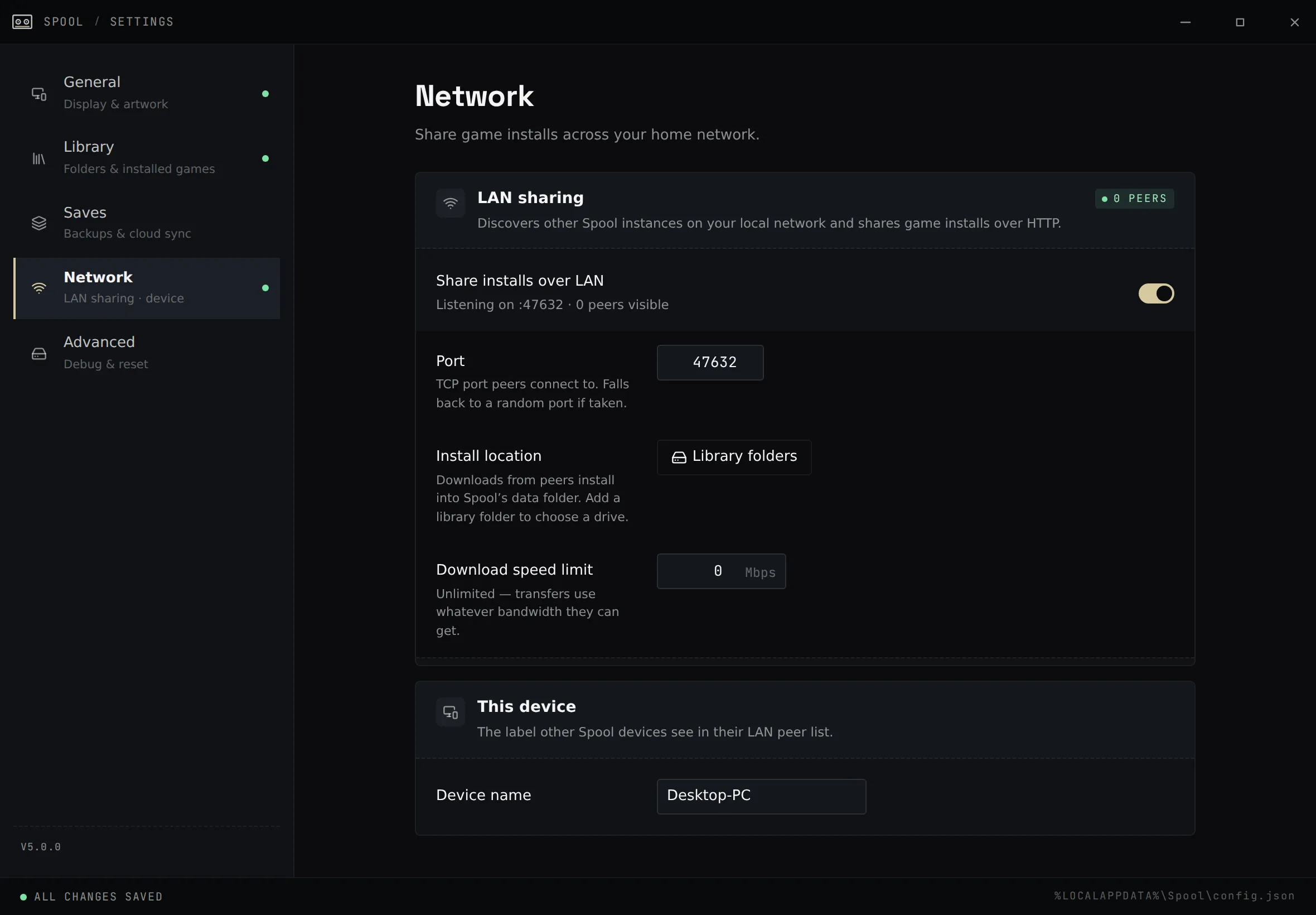
Devices with sharing enabled find each other automatically on the same network — there’s nothing to pair.
Transfer a game
Section titled “Transfer a game”- On the receiving device, open the LAN view. Games shared by peers on the network appear there.
- Pick a game to bring over.
- Watch the transfer progress. When it finishes, the game is added to your library automatically and is ready to launch.
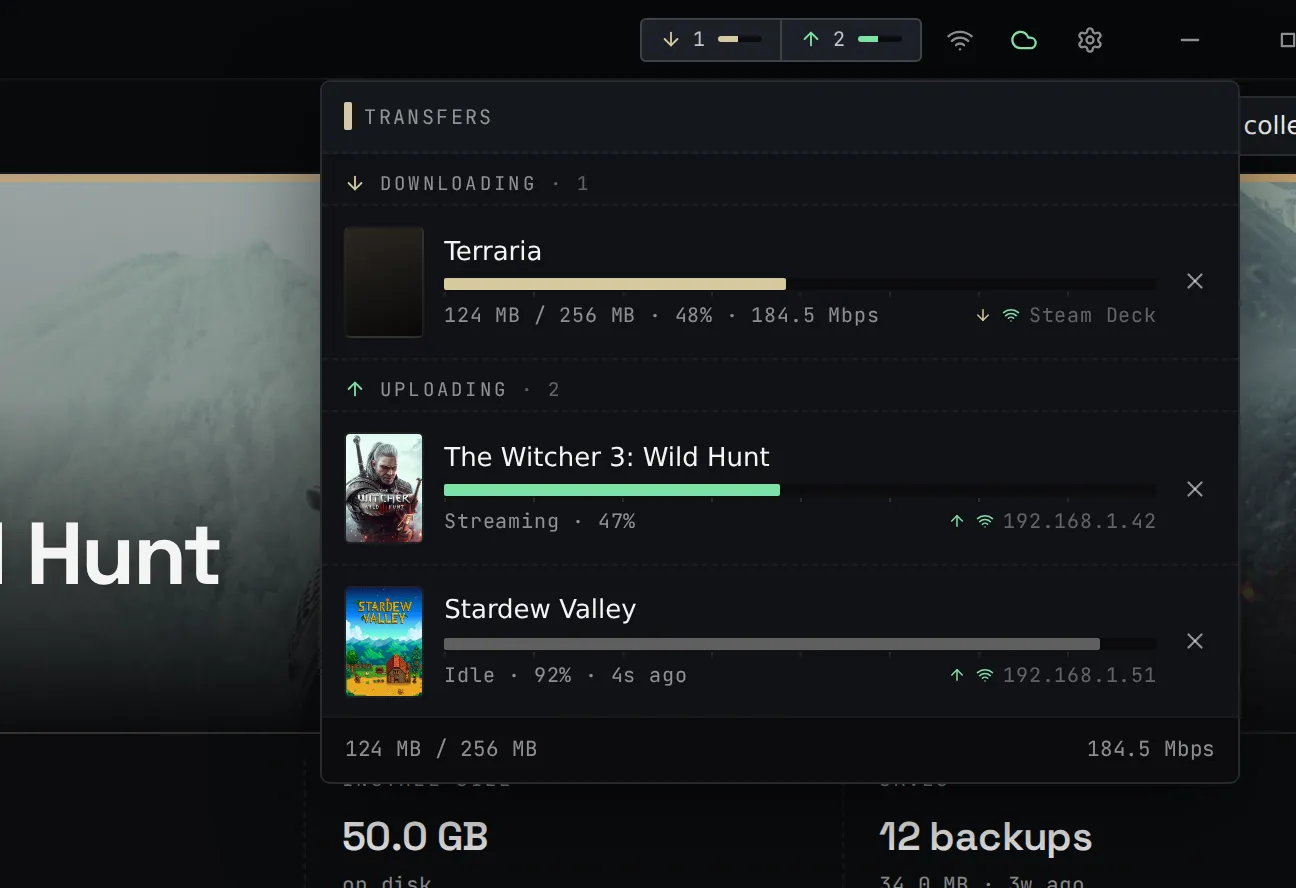
What makes it safe to retry
Section titled “What makes it safe to retry”- Every file is verified. The sender hashes each file; the receiver checks the hash as it downloads, so a corrupted transfer is caught.
- Interrupted transfers resume. Files download into a temporary folder and are only moved into place once the whole game has arrived intact — so if a transfer is interrupted, starting it again picks up where it left off instead of starting over.
Saves still come from the cloud
Section titled “Saves still come from the cloud”LAN transfer copies the game install, not your saves. Your save sync continues to work as usual — see Cloud Save Sync. So you can pull a game onto the Deck over LAN and still have your latest save restored on first launch.