Install Spool
Spool runs on Windows and Linux, including the gaming-handheld distros (Bazzite, CachyOS, SteamOS / Steam Deck) and ARM64 handhelds running Armada. The library, save sync, LAN sharing, and cloud sync work the same on all of them.
Download
Section titled “Download”Grab the latest build from the Releases page:
- Windows — the
Spool_<version>_x64-setup.exeinstaller. - Linux (x86_64) — the
Spool_amd64.AppImage. - Linux (ARM64) — the
Spool_aarch64.AppImage.
Both platforms update themselves in place — when a new version is released, Spool prompts to download and apply it on the next launch.
Install
Section titled “Install”Windows
Section titled “Windows”Run the …-setup.exe installer and follow the prompts. Spool installs per-user
and adds a Start Menu entry.
Run the AppImage:
./Spool_amd64.AppImage # x86_64./Spool_aarch64.AppImage # ARM64If your browser cleared the executable bit on download, mark it runnable first
with chmod +x Spool_*.AppImage.
To install it properly — drop the AppImage into ~/Applications and add a
launcher entry (with icon) so Spool shows up in your desktop’s application menu
(KDE Plasma, GNOME, etc.) — run the installer script instead:
curl -fsSL https://raw.githubusercontent.com/aidankinzett/Spool/master/scripts/install-appimage.sh | bashIt picks the AppImage matching your machine’s architecture, downloads the latest
release, registers the launcher entry, and installs the icons. Re-run it anytime
to reinstall (the AppImage also self-updates in place), or pass --uninstall to
remove the AppImage and launcher entry.
On a Steam Deck or other handheld, do this from Desktop Mode the first time. To launch your library from Game Mode without dropping to the desktop, install the Decky plugin.
How Spool runs
Section titled “How Spool runs”Spool lives in your system tray. Closing the library window hides it to the tray rather than quitting, so it stays ready to launch games with no cold-start delay. Quit from the tray menu’s Quit Spool item.
Add your first game
Section titled “Add your first game”- Open Spool and choose Add Game.
- Drop in (or browse for) the game’s
.exe. - Spool identifies the game, suggests cover art, and shows ranked matches so its saves can be tracked. Pick the right match and add it — or add it without save tracking if you’d rather not.
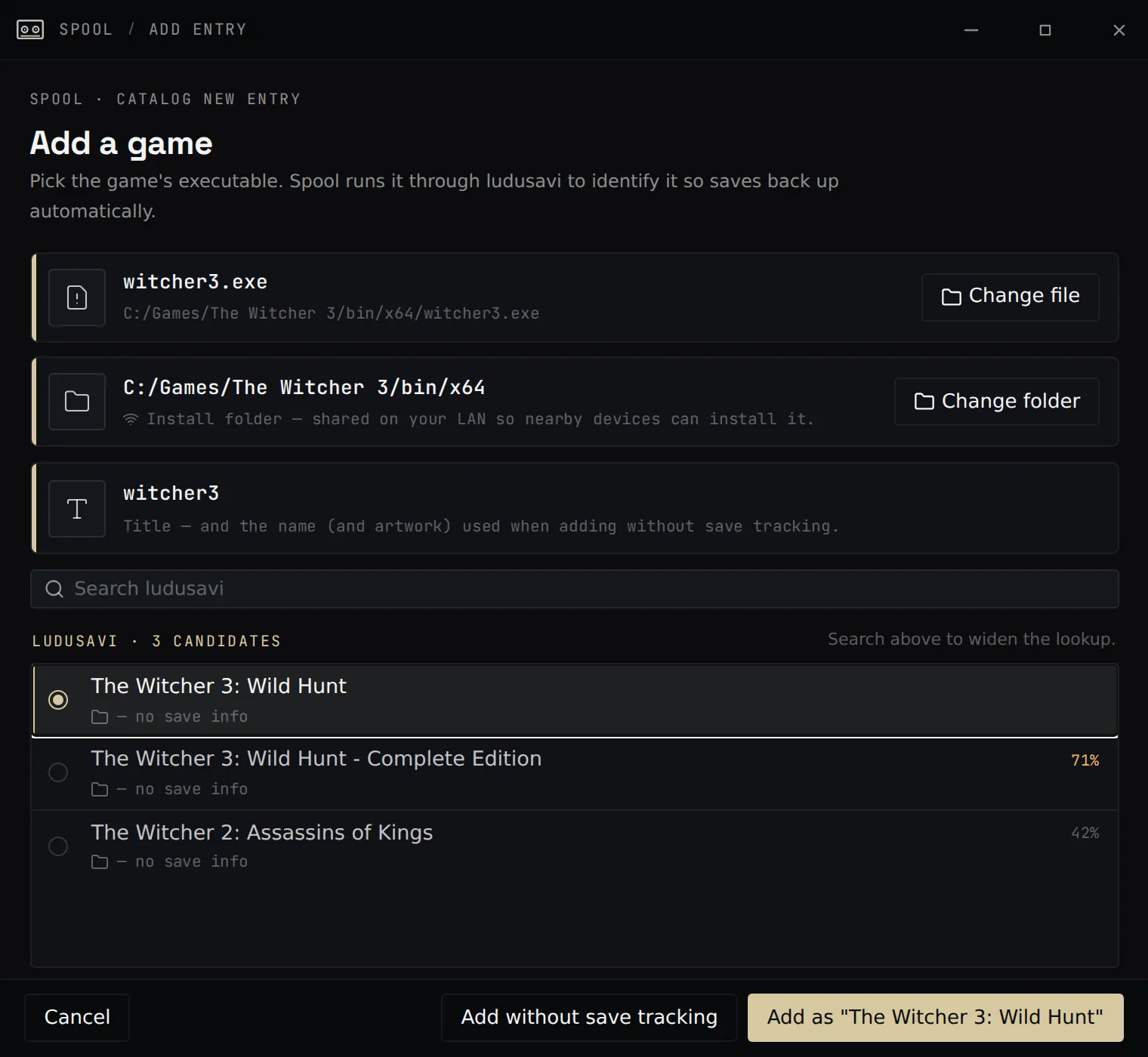
Once a game is in your library, launching it from Spool restores the latest save before play and backs it up when you quit.
Next steps
Section titled “Next steps”- Set up cloud save sync so your saves follow you between devices.
- Transfer games over your LAN instead of re-downloading them.